How to Unsubscribe from Emails on Gmail
Jonas
Dec 9, 2025
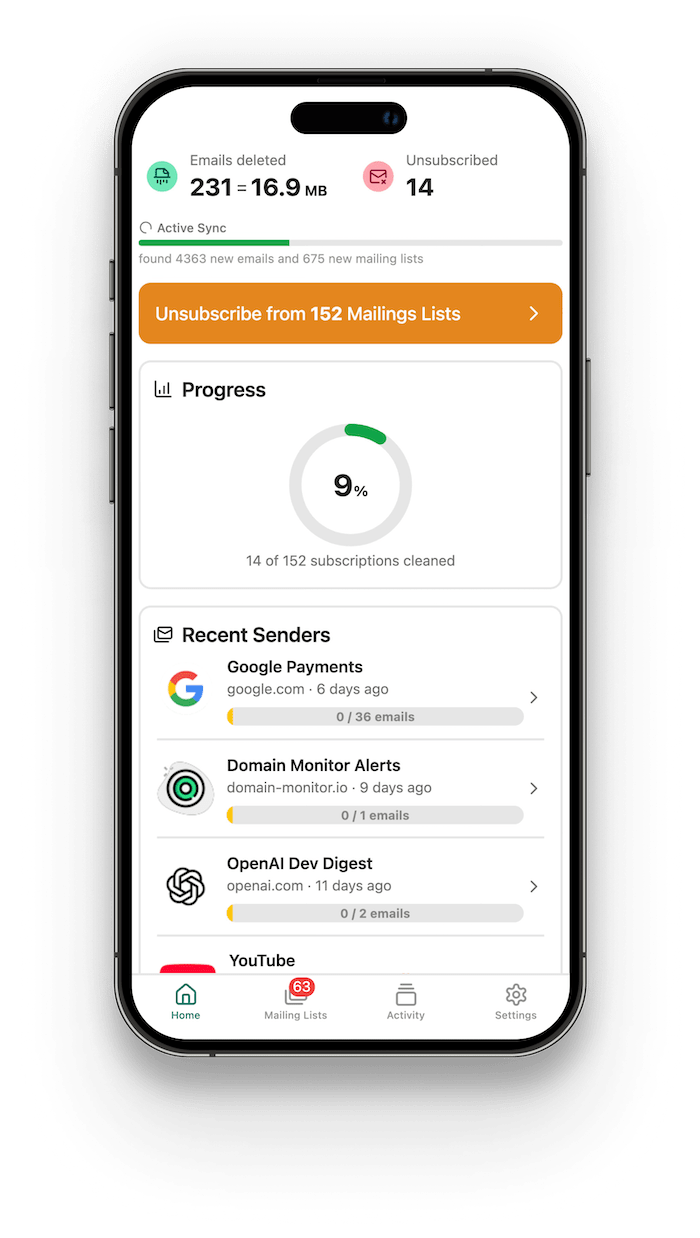
Drowning in promotional emails and newsletters? You're not alone. The average person receives dozens of unwanted emails daily, cluttering their inbox and making it harder to find what actually matters. This guide will show you exactly how to unsubscribe from emails in Gmail using multiple methods, from Gmail's built-in features to advanced bulk tools like ClearBear.

Table of Contents
- Understanding Your Options: Unsubscribe vs. Block
- Method 1: Using Gmail’s One-Click Unsubscribe Button
- Method 2: Using the Unsubscribe Link in Email Content
- Method 3: Mass Unsubscribe with ClearBear
- Method 4: Creating Gmail Filters to Auto-Delete
- Method 5: Blocking Unwanted Senders
- Still Getting Emails After Unsubscribing?
- Best Practices for a Clean Inbox
- Frequently Asked Questions (FAQ)
Understanding Your Options: Unsubscribe vs. Block
Before diving into the how-to, it’s important to understand the difference between unsubscribing and blocking:
👋 Unsubscribing notifies the sender that you no longer want to receive their emails. This works best for legitimate newsletters and marketing emails. The sender removes you from their mailing list, though it may take a few days to process.
🚫 Blocking tells Gmail to automatically send all future emails from a specific sender straight to your Spam folder. The sender isn’t notified, and you maintain complete control. This stops all communication from that address.
Key Differences at a Glance
| Feature | Unsubscribe | Block |
|---|---|---|
| Control | Depends on sender compliance | Entirely in your hands |
| Scope | Only stops certain email types | Stops all emails from sender |
| Notification | Sender is informed | Sender doesn’t know |
| Email destination | Should stop completely | Goes to Spam folder |
| Best for | Legitimate newsletters | Persistent senders, spam |
Method 1: Using Gmail’s One-Click Unsubscribe Button
Gmail automatically detects promotional emails and displays an unsubscribe option for many senders.
📌 Steps:
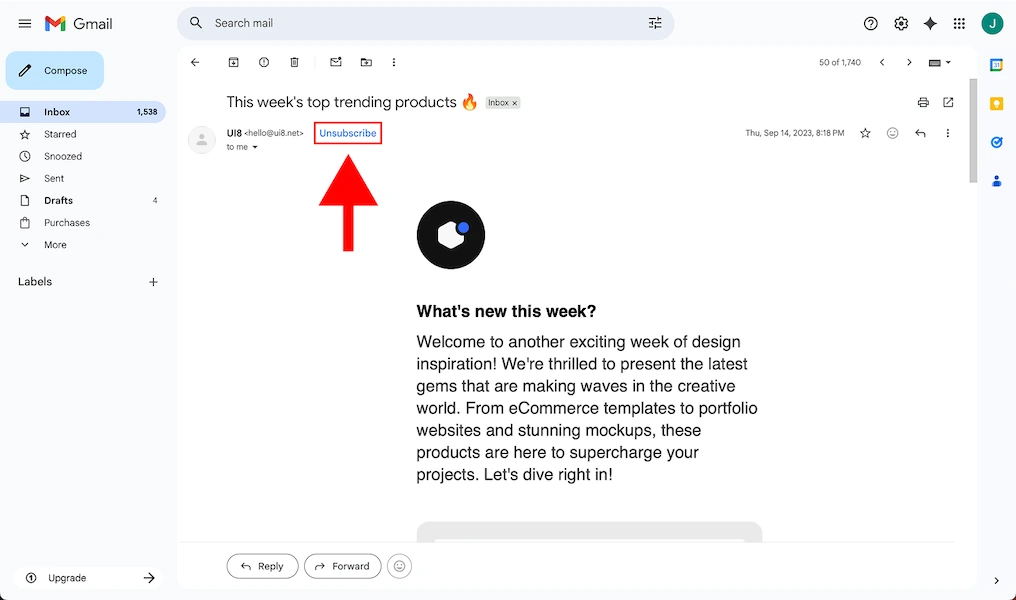
- Open Gmail and find an email you want to unsubscribe from
- Look for the Unsubscribe button next to the sender’s name at the top of the email
- Click Unsubscribe
- Confirm your choice in the dialog box that appears
⚠️ Limitations: Not all emails have this button. It depends on whether the sender includes proper email headers. This method also requires you to unsubscribe one sender at a time.
Method 2: Using the Unsubscribe Link in Email Content
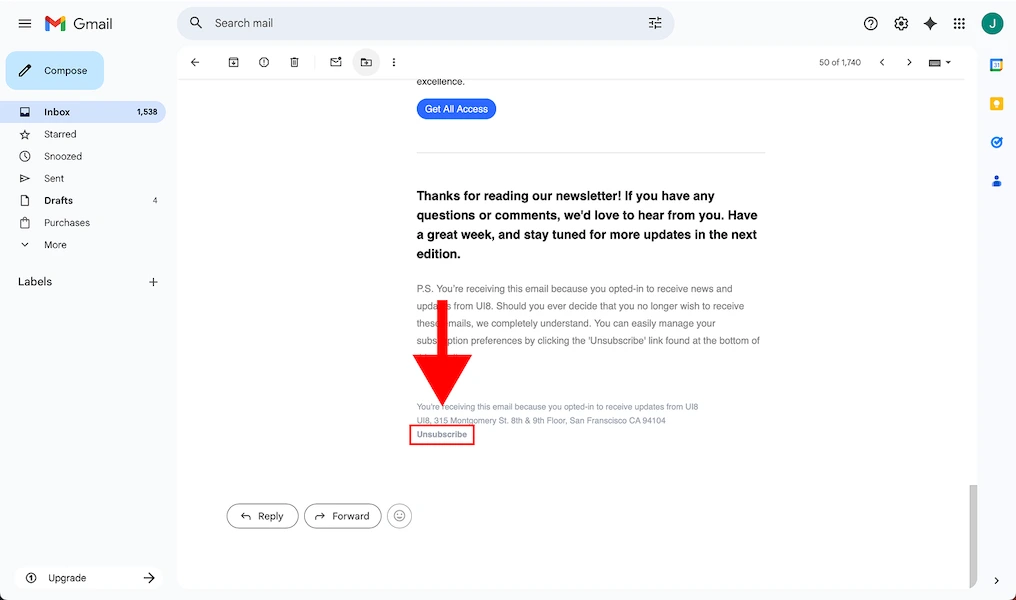
If Gmail doesn’t show an unsubscribe button, look for a link at the bottom of the email. The CAN-SPAM Act requires all commercial emails to include an unsubscribe option.
📌 Steps:
- Open the email and scroll to the bottom
- Find and click the “Unsubscribe” link (usually in small text)
- Follow the instructions on the sender’s website to complete the process
Note: Some senders may ask you to log in or provide a reason for unsubscribing. While this can be annoying, legitimate businesses are required to honor your request within 10 business days.
Method 3: Mass Unsubscribe with ClearBear
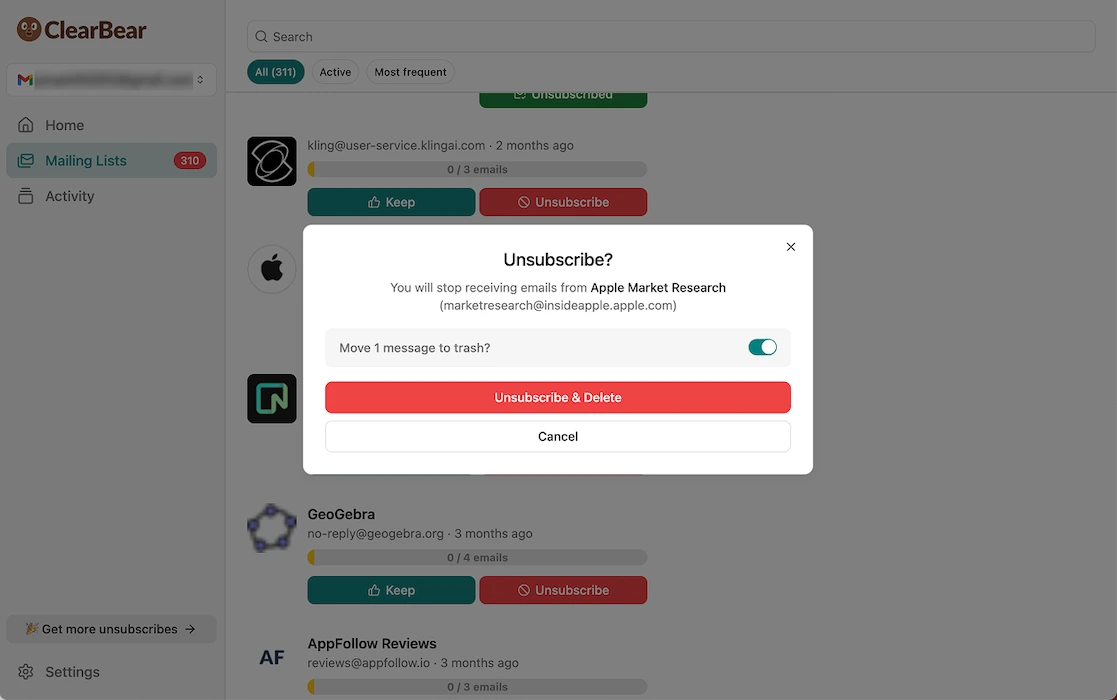
Manually unsubscribing from emails one by one is time-consuming. If you’re dealing with dozens or hundreds of unwanted subscriptions, ClearBear’s bulk unsubscribe feature is your solution.
📌 How ClearBear Works:
- Connect your Gmail account to ClearBear
- ClearBear scans your inbox and identifies all subscription emails
- View a complete list of your subscriptions in one place
- Select the senders and unsubscribe from them with a single click
- ClearBear handles the unsubscribe process automatically, even for emails without obvious unsubscribe links
✅ Benefits:
- Save hours of manual work
- Unsubscribe from multiple senders simultaneously
- Works even when unsubscribe links are hard to find
- Privacy-focused—your data stays secure
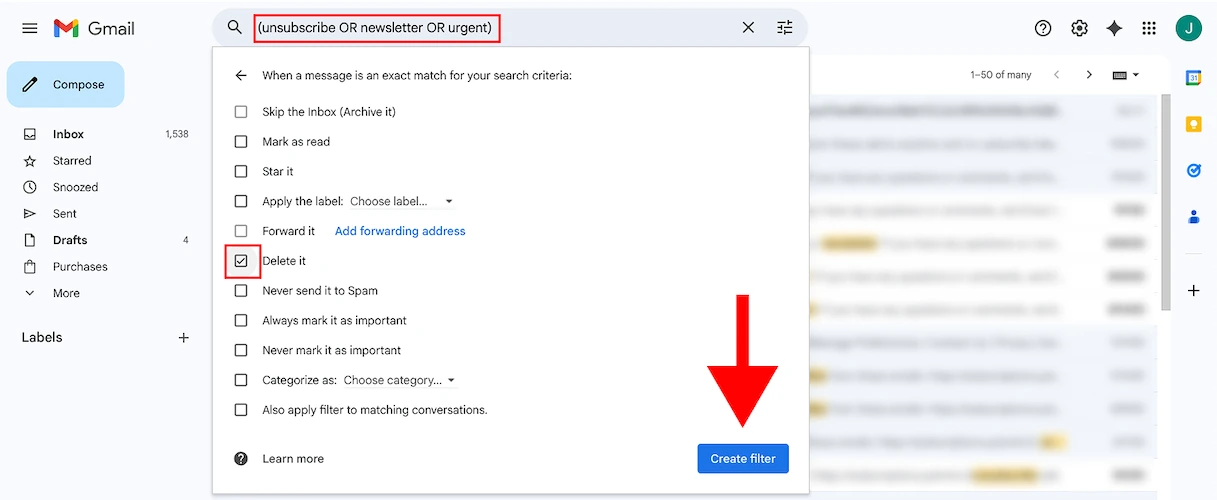
Method 4: Creating Gmail Filters to Auto-Delete
For persistent senders or patterns of emails you want to eliminate, Gmail filters provide automation.
📌 Steps:
- Click the Settings gear icon in Gmail
- Select See all settings → Filters and Blocked Addresses
- Click Create a new filter
- Enter the sender’s email address or keywords like “unsubscribe” or “newsletter”
- Check Delete it or Skip Inbox (Archive it)
- Click Create filter
This prevents future emails from even reaching your inbox.
Method 5: Blocking Unwanted Senders
When unsubscribing doesn’t work or you’re dealing with spam, blocking is your best option.
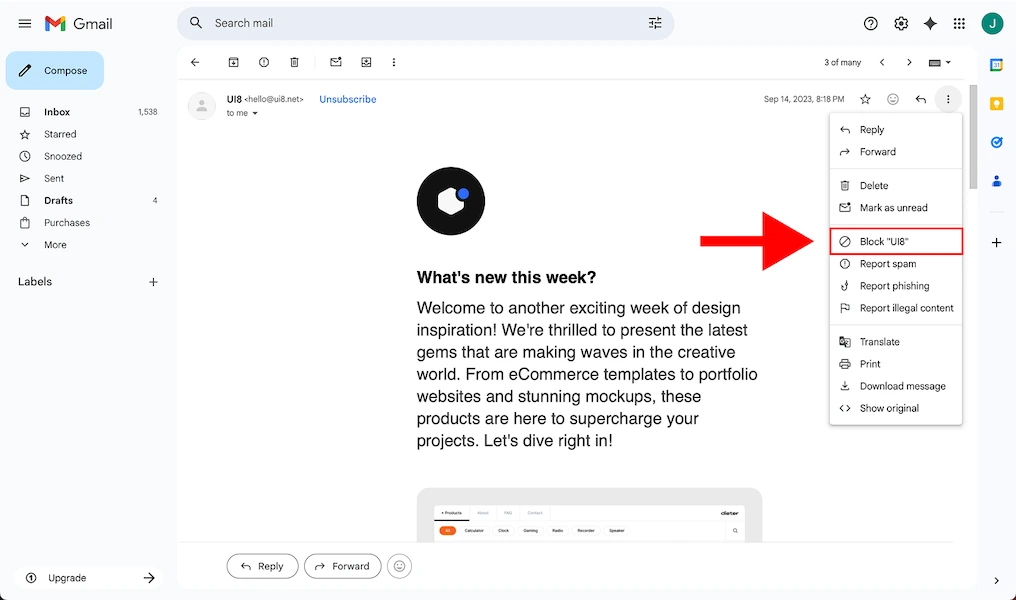
On Desktop:
- Open an email from the sender
- Click the three-dot menu next to the sender’s name
- Select Block “[sender’s name]”
- Confirm your choice
On Mobile:
- Open the Gmail app
- Tap on the email from the sender you want to block
- Tap the three-dot menu (horizontal dots on iOS, vertical on Android)
- Select Block “[sender’s name]”
All future emails from this sender will automatically go to your Spam folder.
Still Getting Emails After Unsubscribing?
If you’ve unsubscribed but emails keep coming, here’s why and what to do:
Common Reasons:
- You’re on multiple mailing lists from the same company
- The sender has up to 10 business days to process your request
- Some companies ignore unsubscribe requests (though this is illegal)
- You’re still receiving transactional emails (order confirmations, receipts)
Solutions:
- Wait a few days before taking further action
- Block the sender using the method above
- Report the email as spam to help Gmail filter similar messages
- Use ClearBear’s advanced features to ensure complete removal
Best Practices for a Clean Inbox
Prevention is as important as cleanup. Here’s how to maintain an organized inbox:
- Think before subscribing. Only sign up for newsletters you’ll actually read
- Use a secondary email for online shopping and promotions
- Set up filters to automatically organize incoming mail
- Regular cleanup. Review your subscriptions monthly using ClearBear
- Report spam when senders ignore unsubscribe requests
Frequently Asked Questions (FAQ)
Can I unsubscribe from all emails at once in Gmail? Gmail doesn’t have a built-in mass unsubscribe feature. You’ll need a tool like ClearBear to unsubscribe from multiple senders simultaneously.
Is it safe to click unsubscribe links? For legitimate companies, yes. For suspicious or spam emails, it’s better to block the sender or report as spam instead. Never click unsubscribe links in obvious phishing attempts.
How long does it take for unsubscribe to work? Legitimate senders have up to 10 business days to process your request, though most do it within 24-48 hours.
What if there’s no unsubscribe option? This violates the CAN-SPAM Act for commercial emails. Block the sender and report as spam. Tools like ClearBear can also help remove you from these lists.
Will the sender know I blocked them? No. When you block someone in Gmail, they receive no notification. Their emails simply go to your Spam folder automatically.
Can I undo an unsubscribe? Usually no—you’ll need to re-subscribe through the sender’s website. However, if you blocked someone in Gmail, you can unblock them in Settings → Filters and Blocked Addresses.